Thursday, 10 July 2014

Cumulative Update 16 for Microsoft Dynamics NAV 2013 has been released


Cumulative update 16 includes all application and platform hotfixes and regulatory features that have been released for Microsoft Dynamics NAV 2013. 

The cumulative update includes hotfixes that apply to all countries and hotfixes specific to the following local versions:
  • AU - Australia
  • AT - Austria
  • BE - Belgium
  • CH - Switzerland
  • DE - Germany
  • DK - Denmark
  • ES - Spain
  • FI   - Finland
  • FR - France
  • IS  - Iceland
  • IT   - Italy
  • NA - North America
  • NL - Netherlands
  • NO - Norway
  • NZ - New Zealand
  • SE - Sweden
  • UK - United Kingdom

Where to find cumulative update 16

You can download cumulative update 16 from KB 2977472 – Cumulative Update 16 for Microsoft Dynamics NAV 2013 (Build 37201).

For a full list of all hotfixes included in cumulative updates for Microsoft Dynamics NAV 2013, see the following CustomerSource and PartnerSource pages: 

CustomerSource:
PartnerSource:

More Information

For more information about cumulative updates for Microsoft Dynamics NAV 2013, see Released Cumulative Updates for Microsoft Dynamics NAV 2013.

For a list of all release cumulative updates, see Released Cumulative Updates for Microsoft Dynamics NAV 2013.

Regards,
Sathish

Cumulative Update 9 for Microsoft Dynamics NAV 2013 R2 has been released


Cumulative update 9 includes all application and platform hotfixes and regulatory features that have been released for Microsoft Dynamics NAV 2013 R2. 

The cumulative update includes hotfixes that apply to all countries and hotfixes specific to the following local versions:
  • AU - Australia
  • AT - Austria
  • BE - Belgium
  • CH – Switzerland
  • CZ – Czech Republic (New)
  • DE - Germany
  • DK - Denmark
  • ES - Spain
  • FI  - Finland
  • FR - France
  • IS - Iceland
  • IT - Italy
  • NA - North America
  • NL - Netherlands
  • NO - Norway
  • NZ - New Zealand
  • RU – Russia
  • SE - Sweden
  • UK - United Kingdom
This cumulative update also introduces new application merge utilities: A new set of Windows PowerShell cmdlets that can help you through code upgrade.

You can use the new cmdlets to modify application object source files in the Microsoft Dynamics NAV 2013 R2 Development Shell, or by importing the Microsoft.Dynamics.NAV.Model.Tools.psd1 module into the Windows PowerShell Integration Script Environment (ISE). The new application merge utilities install when you choose the Developer option in Microsoft Dynamics NAV 2013 R2 Cumulative Update 9 Setup, or if you add the development environment to another installation option.

For more information, see the 

MicrosoftDynamicsNAV2013R2CU9_MergeApplicationObjectSourceFiles.pdf whitepaper, which is attached to this blog post. We will also write about the new cmdlets here on the blog.

Where to find cumulative update 9

You can download cumulative update 9 from KB 2977473 – Cumulative Update 8 for Microsoft Dynamics NAV 2013 R2 (Build 37221).

For a full list of all hotfixes included in cumulative updates for Microsoft Dynamics NAV 2013 R2, see the following CustomerSource and PartnerSource pages: 

CustomerSource:
PartnerSource

More Information

For more information about cumulative updates for Microsoft Dynamics NAV 2013 R2, see Announcement of update rollups for Microsoft Dynamics NAV 2013 R2. 

For a list of all release cumulative updates, see Released Cumulative Updates for Microsoft Dynamics NAV 2013 R2.


Regards,
Sathish

Tuesday, 1 July 2014

NAV 2013 Credential Type - How to Use?

Hi all,

Please do these activities when you have time, its a long activity and i would suggest do all activities in one go. So be clam and lets start.

I have installed NAV 2013 and its work great with my windows credentials.


I was checking the service console (Microsoft Dynamics NAV Administration) in NAV 2013 and found out that Credentials Type have multiple Options.


1) Windows (we use this as default and its works fine when we install default NAV 2013. We are using same after release of NAV 2009).

Other Options are - UserName, NavUserPassword and AccessControlService.

First of create a user under Administration/IT Administration/General/Users. As shown below how to create it.


I use UserName as TEST and Password as Manager@1. Provide Super Role to the Test User.

You will encounter with an error message when you try to save the Login as shown below.


Just click ok, we are getting this error because we haven't changed the service file yet.


Let's try to use the second option that is NavUserPassword in this article. All steps remain same for UserName too.

First of all i will change the Credentials Type in Service Console of NAV 2013 by editing the service as shown below.


After that try to stop and start the service. You will encounter with an error message -

Server Instance 'MicrosoftDynamicsNavServer$DynamicsNAV70' failed to reach  status 'Running' on this server due to the following error: 'Time out has expired and the operation has not been completed.'. Additional information may be in the event log of the server.


I checked the event viewer and here is what the detailed error i got -

Server instance: DynamicsNAV70
Session type: UnknownClient
Session ID: 0
User: 
Type: Microsoft.Dynamics.Nav.Types.NavConfigurationException
SuppressMessage: False
FatalityScope: None
Message: The required certificate thumbprint is not specified. Specify a valid value for the ClientServicesCertificateThumbprint configuration setting.
StackTrace:
     at Microsoft.Dynamics.Nav.Types.CertificateValidator.ValidateCertificateThumbprint(String thumbprint)
     at Microsoft.Dynamics.Nav.Types.CertificateHelper.GetCertificateFromThumbprint(String certificateThumbprint)
     at Microsoft.Dynamics.Nav.WindowsServices.NavServerWindowsService.CreateServiceHosts(ServerUserSettings settings, Boolean usePortSharing, String machineName)
     at Microsoft.Dynamics.Nav.WindowsServices.NavServerWindowsService.OnStart(String[] args)
Source: Microsoft.Dynamics.Nav.Types
HResult: -2146233088

It says that we need to specify ClientServicesCertificateThumbprint in the Service. Lets try to find where we need to specify it. I opened the service console and under client service i can see the Certificate thumbprint as shown below.


Let try to specify a value for the same.

Prerequisites -
1. Microsoft Management Console (MMC).
2. The makecert.exe utility.

If you do not already have this (MMC) snap-in installed, then follow these steps:
1. Choose Start, choose Run, and then type Mmc.exe.
2. In the console, on the File menu, choose Add/Remove Snap-in.
3. In the Add Standalone Snap-in dialog box, select Certificates, choose Computer Account, choose Local Computer, and then choose Add.


The makecert.exe utility is installed with Microsoft Visual Studio and Microsoft Windows SDK.

To create a root CA and a private key file by using the makecert.exe utility.

1. On the computer running Microsoft Dynamics NAV Server, create a temporary folder to use when you work with certificates.
2. Open the command prompt as follows:

If you have Visual Studio installed on your computer, choose Start, choose All Programs, choose Microsoft Visual Studio 2010, choose Visual Studio Tools, and then right-click Visual Studio Command Prompt and choose Run as Administrator.


3. Type the following command.
makecert -n "CN=RootNavServiceCA" -r -sv RootNavServiceCA.pvk RootNavServiceCA.cer

When you are prompted, enter a password. You need this password to create the service certificate.

The RootNavServiceCA.cer certificate file and the RootNavServiceCA.pvk private key are saved in your temporary folder.

To use the Certificates snap-in to install the root CA on the computer running Microsoft Dynamics NAV Server -

1. Start the Certificates snap-in for MMC on the computer running Microsoft Dynamics NAV Server, and then add the Certificates snap-in. [Already Done]

2. In the Certificates snap-in dialog box, choose Computer account, and then choose Next.[Already Done]

3. In the Select Computer pane, choose Local computer: (the computer this console is running on), and then choose Finish. [Already Done]

4. Choose OK to close the Add or Remove Snap-ins dialog box. [Already Done]

5. In the left pane of MMC, expand the Certificates (Local Computer) node.

6. Expand the Trusted Root Certification Authorities node, right-click the Certificates subfolder, select All Tasks, and then choose Import.

7. In the Certificate Import Wizard, on the Welcome page, choose Next.

8. On the File to Import page, choose Browse.

9. Browse to the location of the RootNavServiceCA.cer certificate file, select the file, and then choose Open.

The default Location is C:\Windows\SysWOW64\RootNavServiceCA.cer.


10. On the File to Import page, choose Next.

11. On the Certificate Store page, accept the default selection, and then choose Next.

12. On the Completing the Certificate Import Wizard page, choose Finish.

13. The RootNavServiceCA certificate is now visible in the list of trusted root CAs.

14. You now create a certificate revocation list for the root certification authority and then install the certificate revocation list on the computer running Microsoft Dynamics NAV Server. A certificate revocation list is required because WCF applications check the revocation list when validating certificates.

To create a certificate revocation list for the root certification authority

At the command prompt, type the following command: (use same Visual Studio Command Prompt)
makecert -crl -n "CN=RootNavServiceCA" -r -sv RootNavServiceCA.pvk RootNavServiceCA.crl

When you are prompted, enter the password that you used to create the certificate.

To install the certificate revocation list on the computer running Microsoft Dynamics NAV Server -

1. In the Certificates snap-in, in the left pane of MMC, expand the Certificates (Local Computer) node.

2. Expand the Trusted Root Certification Authorities node, right-click the Certificates subfolder, select All Tasks, and then choose Import.

3. In the Certificate Import Wizard, on the Welcome page, choose Next.

4. On the File to Import page, choose Browse.

5. In the File Type field, select Certificate Revocation List (*.crl).

6. Browse to the location of the RootNavServiceCA.crl file, select the file, and then choose Open.


7. On the File to Import page, choose Next.

8. On the Certificate Store page, accept the default selection, and then choose Next.

9. On the Completing the Certificate Import Wizard page, choose Finish.

10. Select the Trusted Root Certificate Authorities node, and then refresh the snap-in.

A Certificate Revocation List folder that contains the RootNavServiceCA.crl file has been created.


To create and install a test certificate for the Microsoft Dynamics NAV Server computer -

1. At the command prompt, type the following command:

makecert -sk NavServiceCert -iv RootNavServiceCA.pvk -n "CN=NavServiceCert" -ic RootNavServiceCA.cer -sr localmachine -ss my -sky exchange -pe NavServiceCert.cer

This command specifies the subject’s certificate name as NavServiceCert. You need this certificate name when you configure the Microsoft Dynamics NAV Windows client or Microsoft Dynamics NAV Web Server components.

2. When you are prompted, enter the password that you used to create the root CA.

3. Select the Trusted Root Certificate Authorities node, and then refresh the snap-in.

To grant access to the certificate’s private key to the service account for Microsoft Dynamics NAV Server -

1. In the left pane of MMC, expand the Certificates (Local Computer) node, expand the Personal node, and then select the Certificates subfolder.

2. In the right pane, right-click the NavServiceCert certificate, choose All Tasks, and then choose Manage Private Keys.

3. In the Permissions for NavServiceCert private keys dialog box, choose Add.

In the Select Users, Computers, Service Accounts, or Groups dialog box, enter the name of the service account that is used by Microsoft Dynamics NAV Server By default, the service account is NETWORK SERVICE. Choose OK when done.


In the Permissions for NavServiceCert private keys dialog box, select the account, and then select the Allow check box next to Full Control. Choose OK when done.

In the right pane, double-click the NavServiceCert certificate.

In the Certificate dialog box, choose the Details tab, and then select the Thumbprint field.

Copy or note the value of the Thumbprint field. (Make Sure you only copy the value as the Thumbprint value have a space in the start as shown in image below)


Paste the value in service as shown below.


Start the service and walla service started succesfully.

Now let's try opening Role Tailored Client (Windows Client).

What the Hell we are getting an error saying - There is a communication protocol mismatch between the client and the server.


And the worst part is that there is nothing on the Event viewer also.

Oh! i missed one more configuration file that reside under users in c. Let's stop the service and open the ClientUserSettings file.

The path for file is - C:\Users\<user name>\AppData\Roaming\Microsoft\Microsoft Dynamics NAV\70

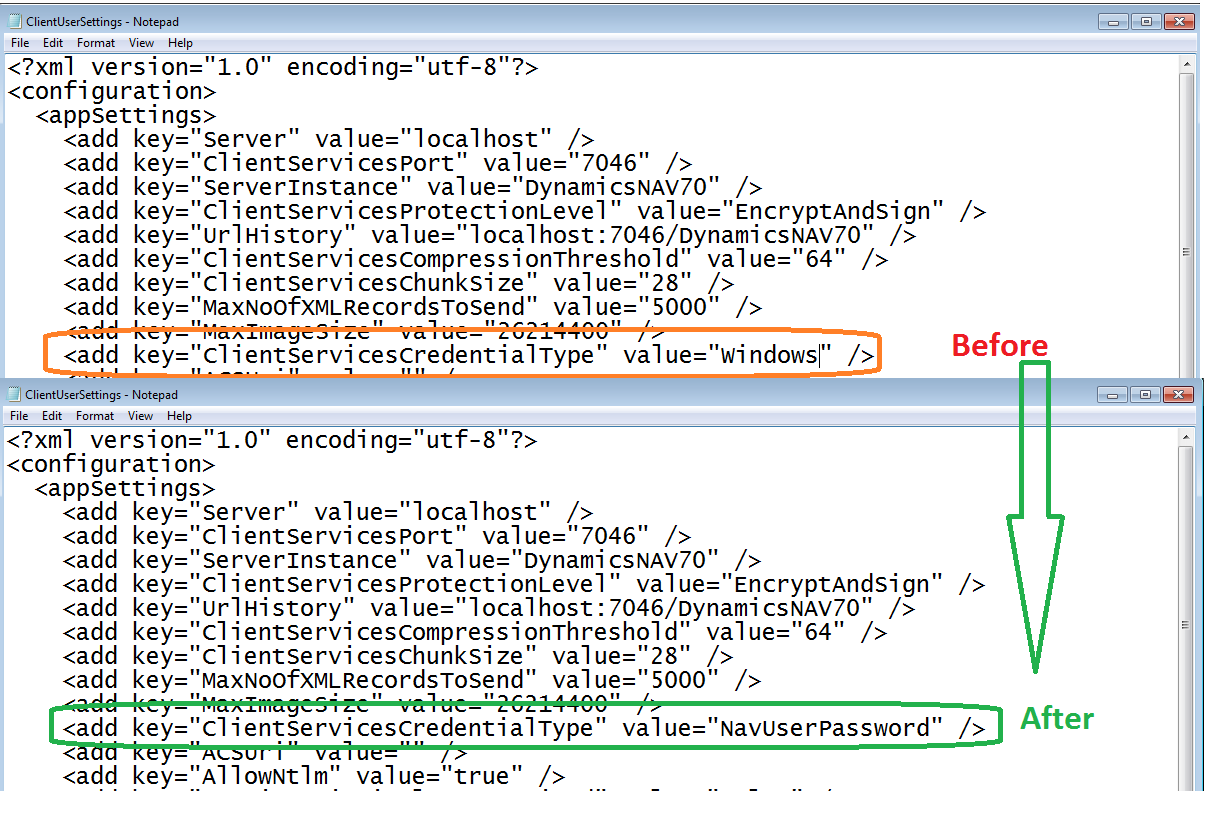
When i opened the file, i figured out that ClientServicesCredentialType is still windows. Lets try to change it to NavUserPassword.


Save the file, start the service and start the client.

Wow the RTC Client Connected and its asking for user name and password.


When i entered username and password, clicked ok. But what i am getting an error.


The error message also suggest the solution.It says we need to put the Certificate Name in DNSIDENTITY.

so where is it? It in the ClientUserSetting, open the file and enter the certificate name in the DNSIdentity Value as shown below.


Now lets start the client and its started successfully as shown below.


Reference: http://saurav-nav.blogspot.in/

Regards,
Sathish

Friday, 27 June 2014

How Do I - Series for NAV 2013 R2 Updated...

Hi all,

Microsoft have updated new videos on HOW DO I Series for NAV 2013 R2. Below are the link for new videos available on MSDN.

Thanks Microsoft MVP's for the HDI Series.

IF you are looking for Previously Released HDI Series Videos Please Refer Below Links.

>> From 01 To 26 Videos.     

>> From 27 To  42 Videos.

Below are the Links for New Videos.


Let's go through the videos and learn new things in NAV 2013 R2.
 
Reference:http://saurav-nav.blogspot.in

Regards,
Sathish

How Do I - Series for NAV 2013 R2 Updated

Hi all,

Microsoft have updated new videos on HOW DO I Series for NAV 2013 R2.

Below are the link for new videos available on MSDN.

For Last 26 Videos Link Please refer to the Post here.

Below are the Links for New Videos.

 27. How Do I : SEPA One-off Direct Debit Collections in Microsoft Dynamics NAV 2013 R2

28.How Do I : Manage Users in Windows PowerShell with Microsoft Dynamics NAV 2013 R2

29.How Do I : Deploy the Help Server in Microsoft Dynamics NAV 2013 R2

30.How Do I : Create Windows PowerShell scripts for Microsoft Dynamics NAV 2013 R2

31.How Do I : Get Started with Windows PowerShell for Microsoft Dynamics NAV 2013 R2

32.How Do I : Use the Debugger in Microsoft Dynamics NAV 2013 R2

33.How Do I : SEPA Recurring Direct Debit Collections in Microsoft Dynamics NAV 2013 R2

34.How Do I : Do Full SQL Tracing for Microsoft Dynamics NAV 2013 R2

35.How Do I : Manage Objects in Microsoft Dynamics NAV 2013 R2 Development Environment from the Command Prompt

36.How Do I : Monitor a Microsoft Dynamics NAV 2013 R2 Server Instance using Event Tracing

37.How Do I : Enable and Verify Single Sign-on with Office 365 in Microsoft Dynamics NAV 2013 R2 using Best Practice Analyzer and Windows PowerShell

38.How Do I : Export Payment Data to an Electronic Bank File in Microsoft Dynamics NAV 2013 R2

39.How Do I : Set Up Web Client, Windows Client, NAS, and Web Services on Separate Service Tiers in Microsoft Dynamics NAV 2013 R2

40.How Do I : Import a Variable-Column-Number Text File Using an XMLport in Microsoft Dynamics NAV 2013 R2

41.How Do I : Set Up the Job Queue in Microsoft Dynamics NAV 2013 R2

42.How Do I : Create a Matrix Page in Microsoft Dynamics NAV 2013 R2

Let's go through the videos and learn new things in NAV 2013 R2.

Regards,
Sathish

How Do I - Series for NAV 2013 R2

Hi all,

Microsoft have released so many videos on HOW DO I Series for NAV 2013 R2.

Below are the link for the videos.

1. How Do I: Create a Web Service that is based on Account Schedule KPIs in Microsoft Dynamics NAV 2013 R2

2.How Do I: Import and Reconcile a Bank Statement in Microsoft Dynamics NAV 2013 R2

3.How Do I: Manage Incoming Documents in Microsoft Dynamics NAV 2013 R2

4.How Do I: Work with the Payment Registration for incoming payments in Microsoft Dynamics NAV 2013 R2

5.How Do I: Migrate Data Using RapidStart Services for Microsoft Dynamics NAV 2013 R2

6.How Do I: Create a Simple Hello World Extensibility Control in Microsoft Dynamics NAV 2013 R2

7.How Do I: Create a Bing Maps  Extensibility Control in Microsoft Dynamics NAV 2013 R2

8.How Do I: Create a Media Player Extensibility Control in Microsoft Dynamics NAV 2013 R2

9.How Do I: Use the Resource File to Enhance an Extensibility Control in Microsoft Dynamics NAV 2013 R2

10.How Do I: Embed Microsoft Dynamics NAV 2013 R2 pages in a SharePoint Portal

11. How Do I: Enable Single sign-on with Office 365 in Microsoft Dynamics NAV 2013 R2

12. How Do I: Expose Microsoft Dynamics NAV 2013 R2 lists through Business Connectivity Services (BCS)and OData Web Services in Office 365

13. How Do I: Analyze and Decide the Best Grouping Structure in a Report in Microsoft Dynamics NAV 2013 R2

14. How Do I: Use the Document Outline Tool in Microsoft Dynamics NAV 2013 R2

15. How Do I: Use the Row and Column Group Tool in Microsoft Dynamics NAV 2013 R2

16. How Do I: View My Report Dataset in Microsoft Dynamics NAV 2013 R2

17. How Do I: Align Controls in a Report in Microsoft Dynamics NAV 2013 R2

18. How Do I: Ensure My Report Fits Page Size in Microsoft Dynamics NAV 2013 R2

19. How Do I: Group Data in Microsoft Dynamics NAV 2013 R2

20. How Do I: Manage Companies in Microsoft Dynamics NAV 2013 R2

21. How Do I: Migrate from Multiple Companies to a Multi-tenant Architecture in Microsoft Dynamics NAV 2013 R2

22. How Do I: Migrate from a single-tenant NAV 2013 database to NAV 2013 R2 with a multi-tenancy architecture

23. How Do I: Backup and Restore in a Multitenant Environment in Microsoft Dynamics NAV 2013 R2

24. How Do I: Set Up and Monitor Database Synchronization in Microsoft Dynamics NAV 2013 R2

25. How Do I: Manage Tenants in Microsoft Dynamics NAV 2013 R2

26. How Do I: Run an Automated Data Upgrade in Microsoft Dynamics NAV 2013 R2

Felling excited, Lets see whats new in these videos.

Regards,
Sathish

Tuesday, 24 June 2014

How to become a great Microsoft Dynamics NAV developer? Getting started

I have seen quite a lot of questions from confused and frustrated new developers who simply don’t understand Navision. “Why isn’t NAV and C/AL like the development languages they know, why isn’t it more like Pascal, Basic, C++ or even C#?”. Today nobody asks about Pascal or Basic anymore, but 18 years ago they were both quite common. 

Navision always had its own IDE (integrated development environment) called C/SIDE (originally short for client/server integrated development environment) and didn’t use Visual Studio as the development platform. This environment was tightly integrated into the (classic) client and specially optimized for ERP development. With the release of NAV 2013 the classic client is “dead”, only the development part of the classic client remains – now called “Microsoft Dynamics NAV Development Environment”. And this is still where all NAV development is done, with the exception of reports, where the report layouts is developed in Visual Studio using RDL.

Do you want to become a NAV developer or a NAV programmer?

I know many people would say that a developer and a programmer is the same. But I don’t think so. You can rather easily turn a “classic” C programmer into a NAV programmer by learning them C/AL. But becoming a NAV developer takes more time. It requires that you besides knowing the actual programming (C/AL) also have a much broader understanding of NAV. That you know both how it works from the users point of view and more important why it works the way it does. A Dynamics NAV developer should also have a good knowledge of ERP/accounting and business management in general. All NAV developers needs to understand the concepts of debit/credit.

Without this knowledge, then you’re often not able to fully understand the requirements you receive from the customers and/or consultants and come up with the best way to solve this requirement. You not only have to fulfill their requirements in a good technically way, but also in a way so that it is easy to use and doesn’t conflict with existing functionality.  

The NAV developer needs to be able to say “No” to the client/consultant, if they come up with a requirement. They need to be able to come up with alternative solutions or work-a-rounds. Why spend 10 hours creating a new functionality, if you can simplify the requirement and use existing functionality? 

So if a NAV programmer is someone who is able to write NAV code based on a detailed design specification, then the developer someone who is also able write the design specification. Which one do you want to become?

How to start with NAV development?

I therefor always suggest a new NAV developer that they start by learning how to use Dynamics NAV. Install the demo database, and then start using it. If you’re a new NAV developer working for a partner and you have never worked with NAV before, then you should really follow one of the implementation consultants when he/she helps the customer setup a new database. Be a part of the test-group. Create g/l accounts, customers, orders, post invoices, register payments etc. And always ask your self “What if I did this?”.  

A good way is also to follow the basic NAV training like “Dynamics NAV Introduction” and “Dynamics NAV Financial Management” or similar. Taking the “Dynamics NAV Developer” training is of course also a good idea, especially if your plan is to get the NAV developer certification. I know many partners would say that your focus is to get the NAV developer certification. But in my opinion then the certification in it self doesn’t really say anything about the knowledge of the developer, except that he/she might have been able to remember the answer to some standard questions. Personally I would prefer a developer with 1-2 years actual experience, then someone with a certification and less experience.

The debugger

When you have started using the system and feel comfortable with it, then start turning on the debugger. This way you can see exactly what happens when you use the system. You can see which objects are accessed, which code it executes and in which order. 

You should see the debugger as your best friend and tutor into NAV development. And it doesn’t matter if you’re a new developer or an experienced developer. Don’t see it just as a tool to debug errors!

If you are developing to Dynamics NAV 2009 to the Role Tailored Client (RTC) then the debugger will not work here! With NAV 2009 you need to debug using the classic client. With Dynamics NAV 2013 Microsoft released a new debugger that works now with the RTC (now just called the Windows client).

The standard system

So the debugger helps you to get familiar the standard system. Because when you know which code is executed, then it’s also much easier to be able to customize the system. 

So if you’re asked to add a new field to the sales order and make sure that this field is transferred to the posted sales invoice, then you can use the debugger to see how the existing fields are transferred. And you will know exactly which objects to modify.

And the standard system is full of examples. When you are familiar with the standard functionality, then it’s easy to identify similar functionality to what your development task’s requirement. Debug this functionality and then browse the objects, check the code and properties of the standard functionality and then eventually copy whatever code you need. Like if you need a new a new field which is almost similar to a standard field, then it’s easier to copy an existing field and the code related to this field and modify it, than to create it from scratch.

How to optimize your use of the NAV developer forums & Blogs?

As a developer you can get a lot of help from the Forums and Blogs. Often seeing new NAV developers start using forums and blogs as soon as they get their first development assignment. And sometimes doing a full copy-paste from their development assignment, before they have taken the time to understand the assignment themselves. Whereas most of our members love to help you with your specific problems, then nobody really wants to do your job for you. So that’s not the way to use the forums. Often such question will not even be answered, at least not as fast as you want. 

Always understand your own question before asking it. 

When posting a question or searching in a google you should try to make the post or question as short as possible, but at the same time detailed and easy to read. And always mention the product version, as there might be big difference in how to solve a problem in Navision 3.70 or Dynamics NAV 2013. Don’t simply ask “How do I do this?” but write something like “I consider doing it this or that way. But I’m having a problem understanding how to do this (be specific). Is this a good way to do it, or is there a different way it could be done”. This is of course only an example. But the idea is for you to ask your questions so that they can be answered without taking too much time from your fellow member. In general then posts which requires too much time to answer are less likely to get a quick answer. 

This blog post is the first in a series of posts with the purpose of helping especially Dynamics NAV developer newbies with some of the most frequently asked questions. If you have a suggestion to topics I should write about, then please write it in the comments below. If it’s a general question then I will put it on the list to be included in a future post.

Mibuso.com is another great resource, with an online forum that is available to you just for signing up as a member, as well as downloadable code.  You can learn a lot just by searching the forums.  I’d encourage you, as a new NAV developer, to sign up and review the site often.  It’s rich with expert advice – and it’s free!

With a membership to the NAVUG user group, you have several training options, and events you can attend.  They also have a free forum onsite, with excellent community participation. Likewise Dynamics User Group, which covers the entire Microsoft Dynamics family, has many online resources, including a forum, and blogs.

CustomerSource is another resource filled with NAV application and development training and documentation.  Talk to your CustomerSource administrator or VAR to get a login to the site and gain access to the information there.

See Also : 


Regards,
Sathish